
Combine photos for a before-and-after
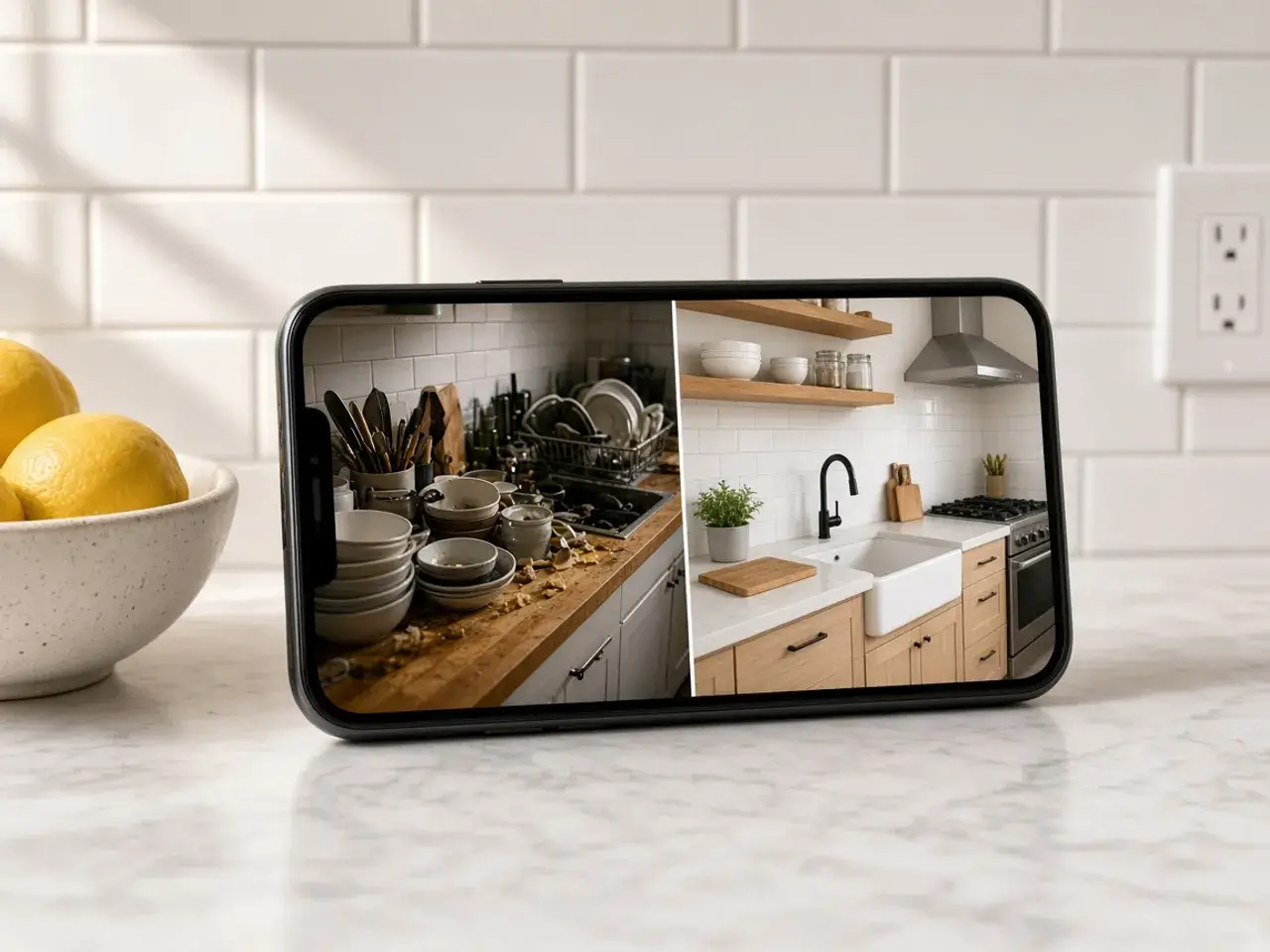
A before-and-after works best when both pictures sit in one frame. Sent separately, the second photo arrives later, shows up smaller, or gets scrolled past. Joined side by side, the change is obvious at a glance, whether it is a fresh coat of paint, a new haircut, or a kitchen after a deep clean.
Add the before photo first and the after photo second, choose Side by side, and download. If the two shots have different heights, each one is centered in the row, so the pair still looks tidy.
Merge images into a grid or a stack
Stacked places photos one under another, which suits anything that reads in order: recipe steps, the stages of a craft project, or a trip told day by day. It also fits phone screens well, since people already scroll down.
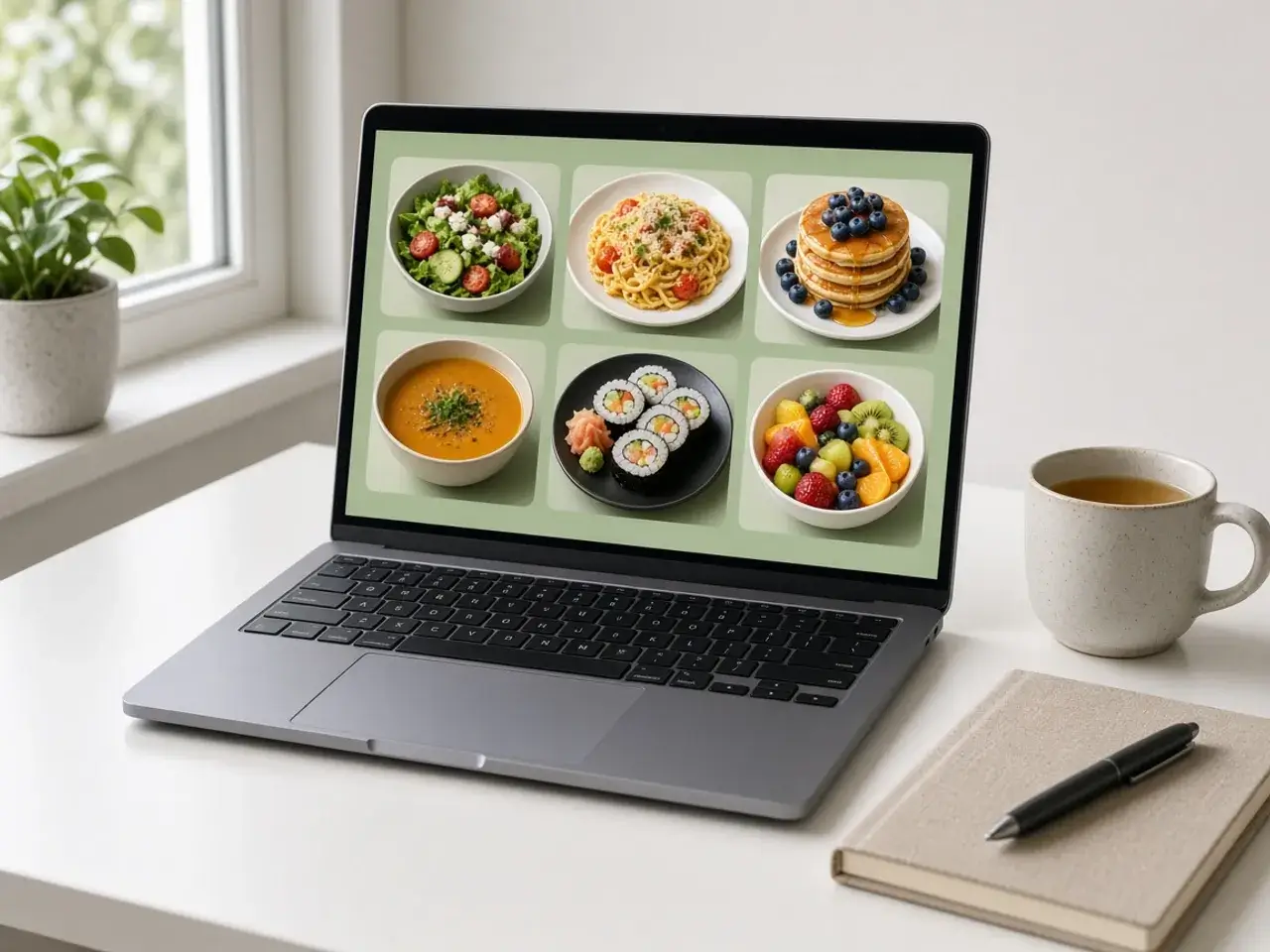
Grid arranges a set into rows and columns. Each photo is fitted inside its own cell, so a tall portrait and a wide landscape can share the grid without being stretched. Use it for a set of options, a mood board, or a few highlights from an event. Pick the gap and the background color so the empty space looks intentional.
Why combine photos into one file
One picture is easier for the person receiving it. Group chats, marketplaces, and social posts often crop or hide extra attachments, and a single image keeps everything together in the order you meant. It also makes a cleaner slide: one picture to place instead of six boxes to line up by hand.
For a client, a single proof with four options in a grid is quicker to review than four separate files. They can reply with a number instead of opening each attachment.
Prepare the photos first
When you merge images, each photo is placed exactly as it is. If one is lying on its side, rotate it first. If one needs a face covered, blur that spot before you join it. For a matching look, turn each photo gray before you merge images.
To change the order later, clear the set and add the photos again in the new order. Your originals are not changed, so you can rebuild the collage at any time.
What this tool does and does not do
Merge images here and they sit next to each other with a gap and a background. It does not blend two shots into one scene, cut people out, or add text. It also leaves each photo’s shape alone, so if you want round photos in the collage, crop them first with the circle crop image tool and bring the results here.
If what you need is a separate round avatar for every photo rather than one combined picture, the batch circle crop on the home page is the better fit.
Ideas for when to merge images
- A before-and-after of a haircut, a renovation, a cleaned car, or a fitness journey.
- Merge images of two product colors side by side so a buyer can compare them.
- The steps of a recipe or a craft, in order, in one tall image.
- Combine photos from a trip into a grid and send it to family in a single message.
- Screenshots of a conversation or an error, stacked so they read from top to bottom.
Combine photos so they look like a set
Combine photos that share a similar size and brightness, and the set looks planned rather than thrown together. Crop each photo to the same shape first, and straighten any that are tilted. A thin gap in white or a soft color makes the set look tidy; no gap makes it feel like one continuous scene.
Keep the most important photo first. People read from left to right and from top to bottom, so the order tells the story. When you merge images for a before-and-after, always put the before on the left. If the result feels crowded, merge images in two smaller sets instead of one big grid.
Frequently asked questions
How do I merge images on my phone?
Open this page in your phone’s browser, tap Upload and select two or more photos, choose a layout, and download. No app is needed.
How many photos can I combine?
From 2 to 20. The download button turns on once you have at least two.
Can I combine photos of different sizes?
Yes. In a row or a stack each photo keeps its own size and is centered. In a grid each one is fitted inside its cell without stretching.
What format do I get when I merge images?
A PNG, which keeps the photos sharp and the background color exact. You can also copy it straight to the clipboard.
Can I choose the color between photos?
Yes. Pick any background color. It fills the gaps and any empty space in the grid.
Are my photos uploaded?
No. The merged picture is built in your browser, and the files never leave your device.
Sources
- createImageBitmap: The browser decodes the photo on this device
- HTMLCanvasElement.toBlob: The download is written by the browser, not uploaded