
Circle Crop Image
Make a circle crop image in seconds: add a photo, drag the face or logo into the round frame, and download a clean circle with a transparent background. This circle cropper works in your browser, so nothing is uploaded and you do not need an account.
or
How to use Circle Crop Image
- 01
Add a photo
Choose a file, drop it on the page, paste a screenshot, or paste an image link. The circle cropper opens right away.
- 02
Frame the subject
Drag, pinch, or use the zoom slider until the face, logo, or product fills the circle. Rotate or flip it if the photo is crooked.
- 03
Download the circle
Save it as PNG to keep the corners see-through, or as JPG or WebP. Your circle crop image is ready to upload or place.
Summarize with
Why use Circle Crop Image
Your photos stay private
Everything happens in your browser. Nothing is uploaded, nothing is stored, and closing the tab clears the picture. That matters for a client headshot, a child’s school photo, or your own face.
You decide what stays in
Apps crop the center of your photo and hope for the best. Here you move and zoom until the eyes, the smile, or the whole logo sits exactly where you want it.
Free, fast, and simple
No sign-up, no watermark, and no app to install. Open the circle cropper on a phone or a laptop, crop the picture, and download it in under a minute.
What is Circle Crop Image?
A circle crop image is a photo cut into a perfect circle, with everything outside the round edge removed. The result is the shape you see on profile pictures, team pages, round logos, and stickers.
Most apps only show a circle on top of a square file, so they decide what gets cut. When you crop the circle yourself, you choose what stays in: the whole face, the full logo, or just the product. Save it as a PNG and the corners stay see-through, so the circle sits neatly on a white page, a dark app, or a colorful slide.
Key features
Clear background
Save as PNG or WebP and the circle cropper keeps the corners see-through. Pick JPG when you need a smaller file and a white background is fine.
Paste a screenshot
Copied a picture from a chat or a web page? Paste it straight into the circle cropper without saving a file first.
Start from a link
Paste the address of an image you found online and press Enter. The picture opens in the editor, ready to frame.
Crop a whole set
Add up to 20 photos, frame the first one, and apply the same crop to the rest. Download them together in one ZIP.
Who needs a circle crop image

Profile pictures
Chat apps, forums, and social networks all show your photo as a small circle. Crop it yourself with the circle cropper so your face stays centered and nothing important is cut off, then use the same circle crop image everywhere.

Slides and documents
A round headshot makes a speaker slide, a resume, or a newsletter look finished. Download a circle crop image here and place it in PowerPoint, Google Slides, or Word without fighting the shape tools.
Logos and stickers
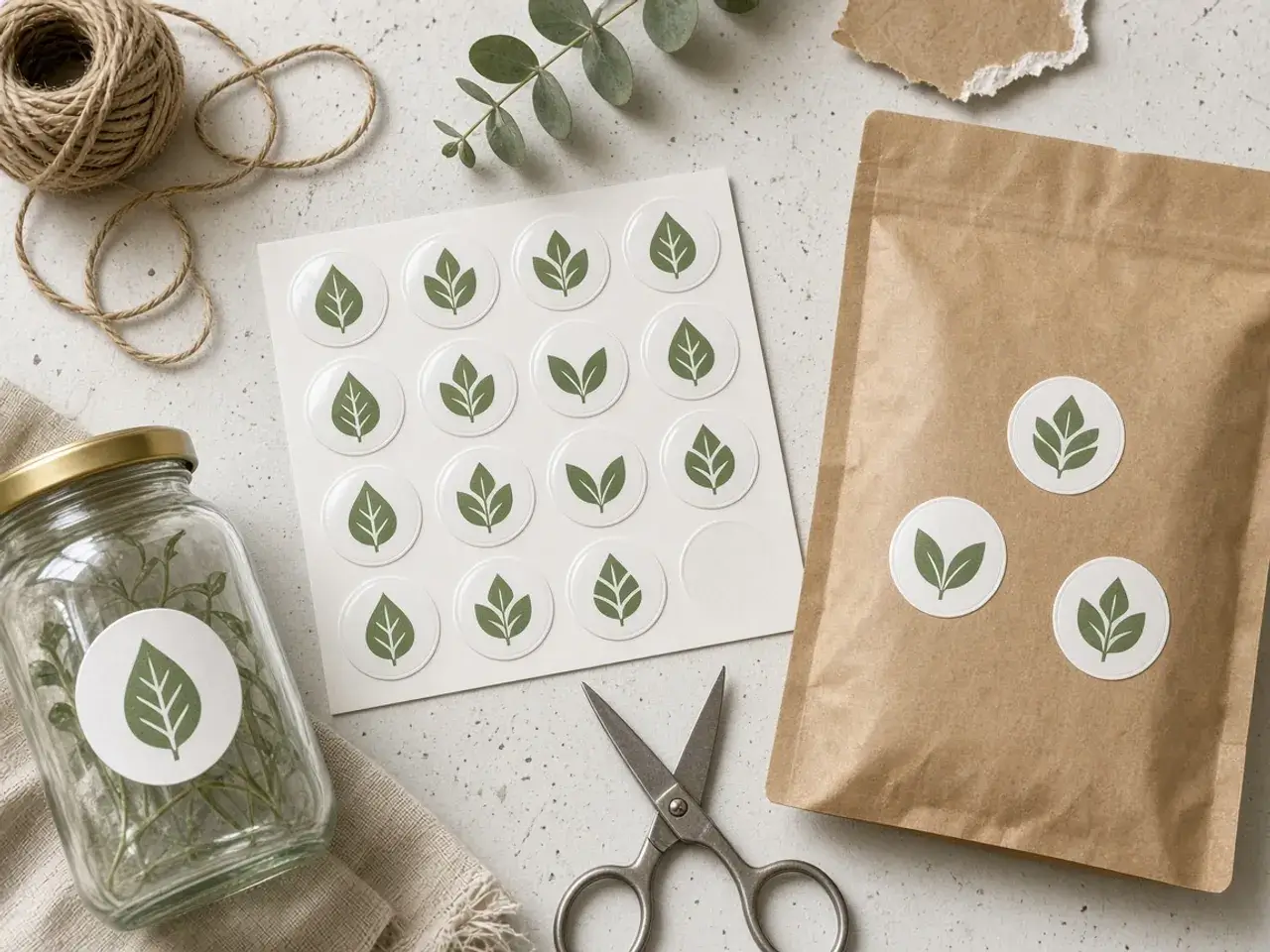
Shop badges, round logos, and printable stickers need clean edges and a see-through background. Save a PNG and the circle crop image drops onto any color, photo, or product label.

Team and class photos
A staff page or a class list looks tidy when every face sits in the same spot. Frame one photo, apply that crop to the rest of the set, and download them together.

Keep the face in the frame
A circle hides the corners of every photo, so the subject has to sit near the middle. Drag the picture under the round frame and zoom until the face, the logo, or the product fills it. The small previews show how the circle crop image looks as a tiny avatar before you download.
Leave a little space around the head and the chin. A crop that is too tight can look cramped once an app adds its own border or shrinks the picture.
A circle cropper for every kind of picture
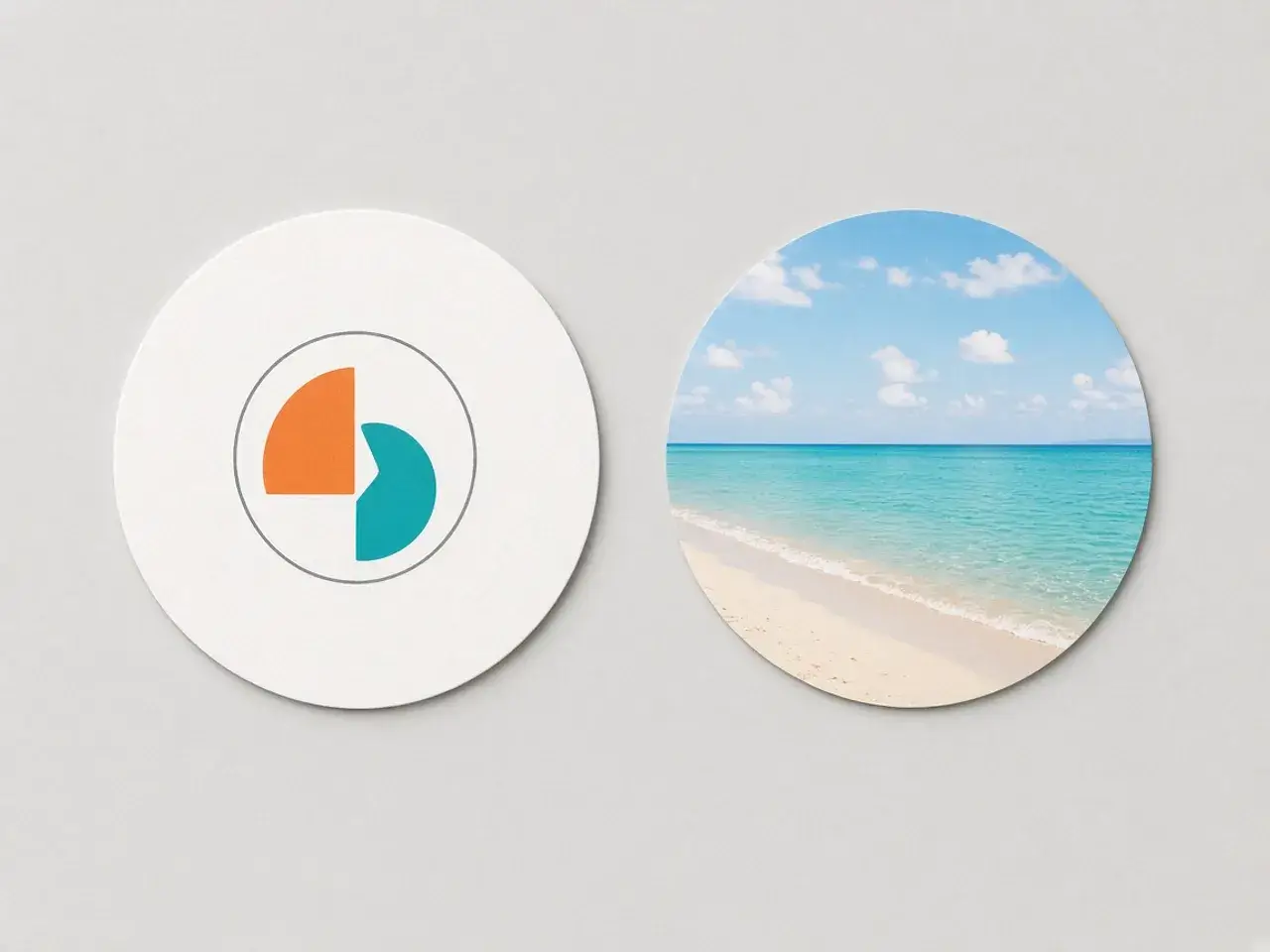
A close-up portrait should fill the circle. A wide logo or a landscape often should not, because cutting off its edges ruins it. Choose Crop to fill the circle, or Fit to shrink the whole picture until every corner fits inside.
When a logo or a wide photo must stay complete, the image to circle converter opens in Fit mode, so nothing is cut off.
A clear background, ready for any design
A circle crop image saved as PNG keeps the area outside the circle see-through. Drop it on a slide, a website, or a poster and it blends in, with no white square behind it. WebP does the same with a smaller file. JPG cannot be see-through, so its corners turn white.
Need the picture somewhere right now? Copy the result and paste it into a chat or a document, or download several sizes at once when you are updating more than one account.
Tips for a better circle crop image
- Start with the sharpest photo you have. A small, blurry picture stays blurry after cropping.
- Pick a plain background. Busy patterns pull attention away from the face once the circle is small.
- Look at the tiny preview. If you cannot recognize the person at that size, zoom in.
- Use the same crop for a set of photos so every face lines up on a team page.
- Add a colored ring with the border tool when the circle disappears on a dark or busy page.
Need a different shape or a profile picture?
The circle cropper is the starting point. For other jobs, use the PFP cropper for app-ready avatars, round corners for screenshots, or a step-by-step guide when PowerPoint, Word, or Canva will draw the circle. Every tool works the same way: add a photo, adjust it, and download.
Frequently asked questions
Can the outside of the circle be transparent?
Yes. PNG is the default, and it keeps everything outside the circle see-through. WebP works the same way. JPG cannot store transparency, so those corners turn white.
What if my photo is already square?
A square photo fits the circle neatly, but the corners are still cut away. Drag and zoom until the part you care about sits in the middle, then download.
Is my picture uploaded?
No. The circle cropper works entirely in your browser. Your photo is never sent to a server, and closing the tab clears it.
Why does my circle look like an oval in another app?
PowerPoint, Google Slides, and Word stretch a round shape to fit the whole picture. A wide photo makes that shape wider than it is tall. Crop the photo to a square first, or download the finished circle here, and resize it from a corner handle.
Can I crop more than one photo at once?
Yes. Add up to 20 photos, set the crop on one, apply it to the rest, and download everything in a single ZIP.
Does it work on a phone?
Yes. The circle cropper works on phones and tablets. Tap to choose a photo from your camera roll, pinch to zoom, drag to move, and save the round picture to your phone.
Sources
- createImageBitmap: The browser decodes the photo on this device
- HTMLCanvasElement.toBlob: The download is written by the browser, not uploaded