
Blur part of image details before you post
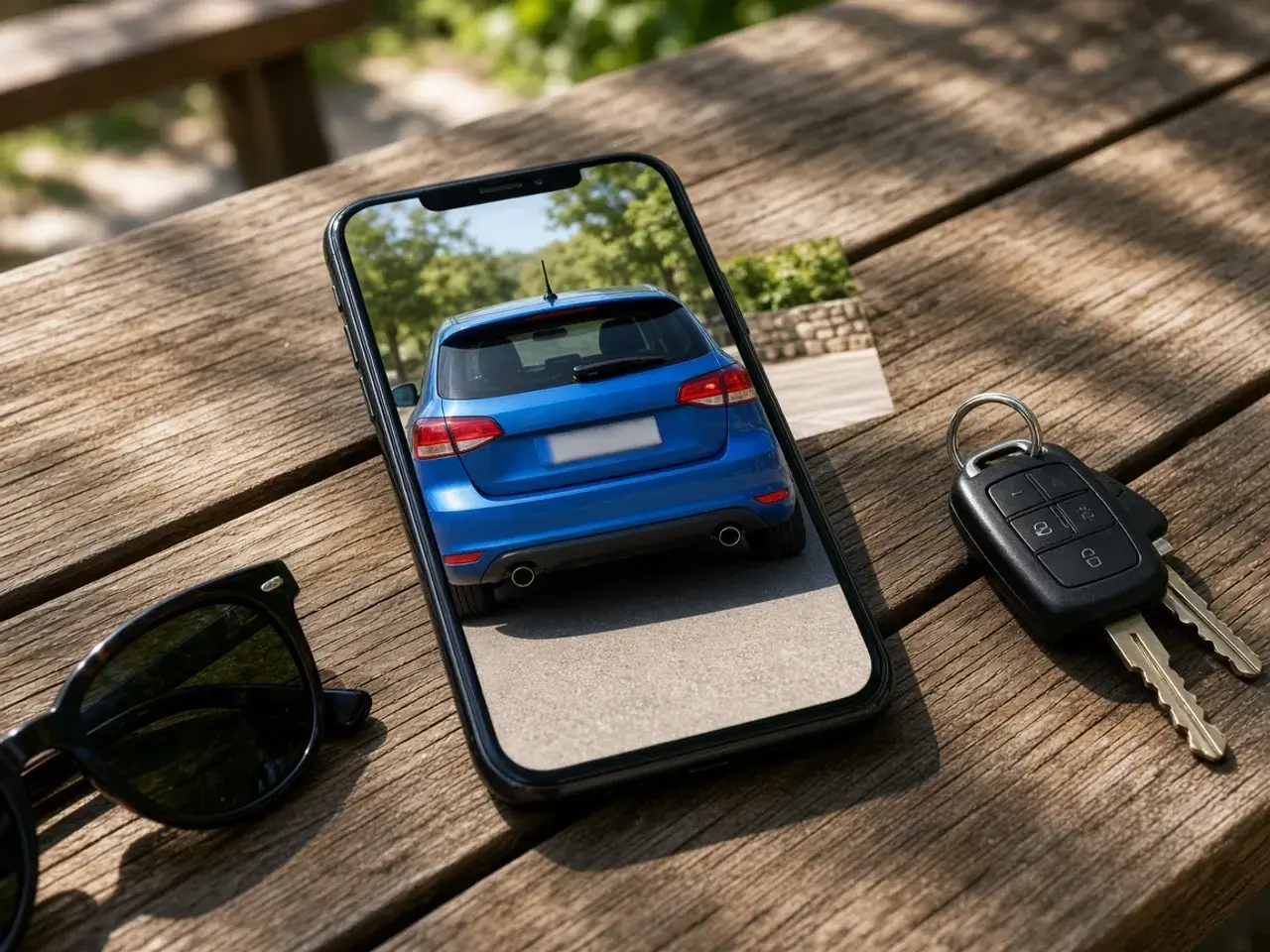
Many photos are worth sharing except for one small thing. A parent wants to post the school play but not other children’s faces. A seller wants to show a car without its license plate. A support agent needs to send a screenshot that also shows a customer’s email address in the corner.
Set Area to Rectangle, drag over the detail, and only that box changes. The rest of the picture stays sharp, so people still understand the moment. Draw the box a little bigger than the detail, because a cover that almost reaches the edge of a face does not really hide it.

Blur image, pixelate, or block it out
A soft blur is pleasant to look at, but a light one can sometimes be partly undone, and the shapes of large letters may still show through. For faces, license plates, ID cards, and document numbers, switch the effect to Pixelate or Solid. Pixelate turns the area into large blocks. Solid paints it over with a color you choose. The page shows a reminder when a light blur is in use.
Strength matters too. Push the slider until the detail is truly unreadable at the size people will see it, not only on your large screen. Then look again with fresh eyes before you post. The blur image tool makes the edit easy, but you decide when it is enough.
Soften the whole picture
Sometimes the goal is a mood, not privacy. A gently blurred photo works well behind a title on a slide, a quote card, a website banner, or a video thumbnail, because the words on top become easier to read. Set Area to Whole and raise the strength until the picture becomes a soft wash of color and shape.
When you blur image backgrounds this way, the whole frame softens evenly, because the tool does not pick out the subject automatically. A soft background should not be asked to hide anything important either. If a face or a name in that background must stay private, cover it with a rectangle first.
What to blur before you post a photo
A quick look around the frame protects you and other people. Before you post, blur part of image wherever you see:
- Faces of children, bystanders, or anyone who did not agree to be in the photo.
- License plates, house numbers, and street signs that reveal where you live.
- Names, email addresses, and phone numbers in a screenshot.
- Tickets, boarding passes, and cards with barcodes or account numbers.
Blur image backgrounds for text and slides
A softly blurred photo makes a good background for a quote, a title slide, or a phone wallpaper. The colors and the mood of the scene stay, but the busy details fade, so the words on top are easy to read. Blur image backgrounds lightly; a little goes a long way.
Frequently asked questions
Can I blur part of image and keep the rest sharp?
Yes. Set Area to Rectangle and drag over the spot. Only that box changes, and everything outside it stays as it was.
How do I blur image backgrounds?
Set Area to Whole to soften the entire photo. The tool does not detect the subject, so it suits a backdrop for text rather than a portrait that must keep a sharp face.
Is a blur enough to hide a face?
A light blur may not be. Use Pixelate or Solid for faces, plates, and documents, and check the result before you post.
Does the download keep my photo’s location data?
No. The saved picture is a new file and does not copy the camera details from the original.
Is my photo uploaded when I blur image files here?
No. Everything happens in your browser, and the photo never leaves your device.
Is it free to blur image files here?
Yes. There is no sign-up and no watermark.
Sources
- createImageBitmap: The browser decodes the photo on this device
- HTMLCanvasElement.toBlob: The download is written by the browser, not uploaded