
Make a faint scan easier to read
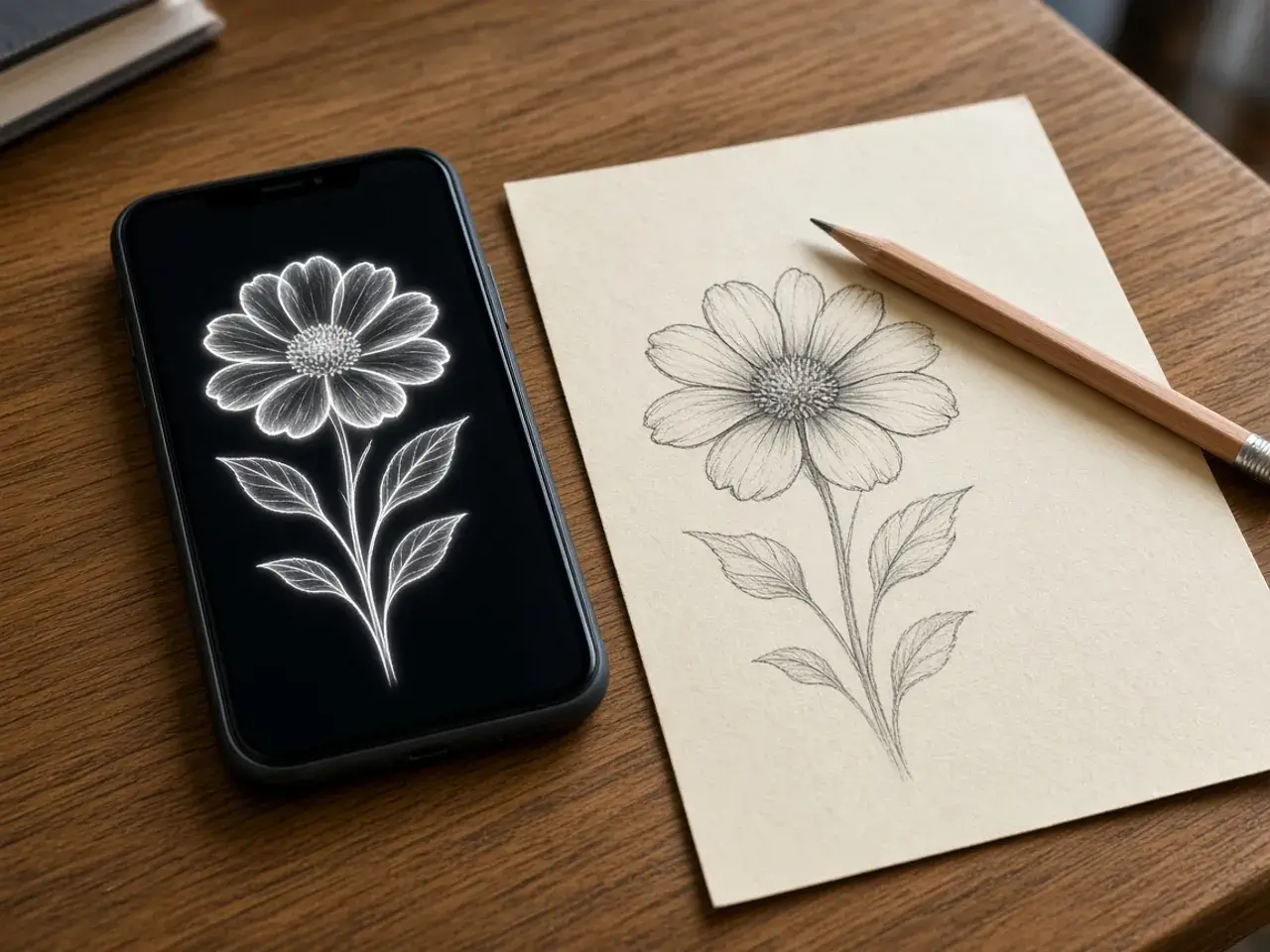
Pencil notes, a faded receipt, or an old letter on yellowed paper can be hard to read on a screen. Inverting the colors turns the paper dark and the marks light, and for many people that contrast is easier on the eyes. It also works as a quick check of a page you photographed in poor light.
Add the photo, look at the preview, and hold the compare button to switch between the two versions. If the inverted page is clearer, download it and keep the original next to it.
A negative look for posters and thumbnails
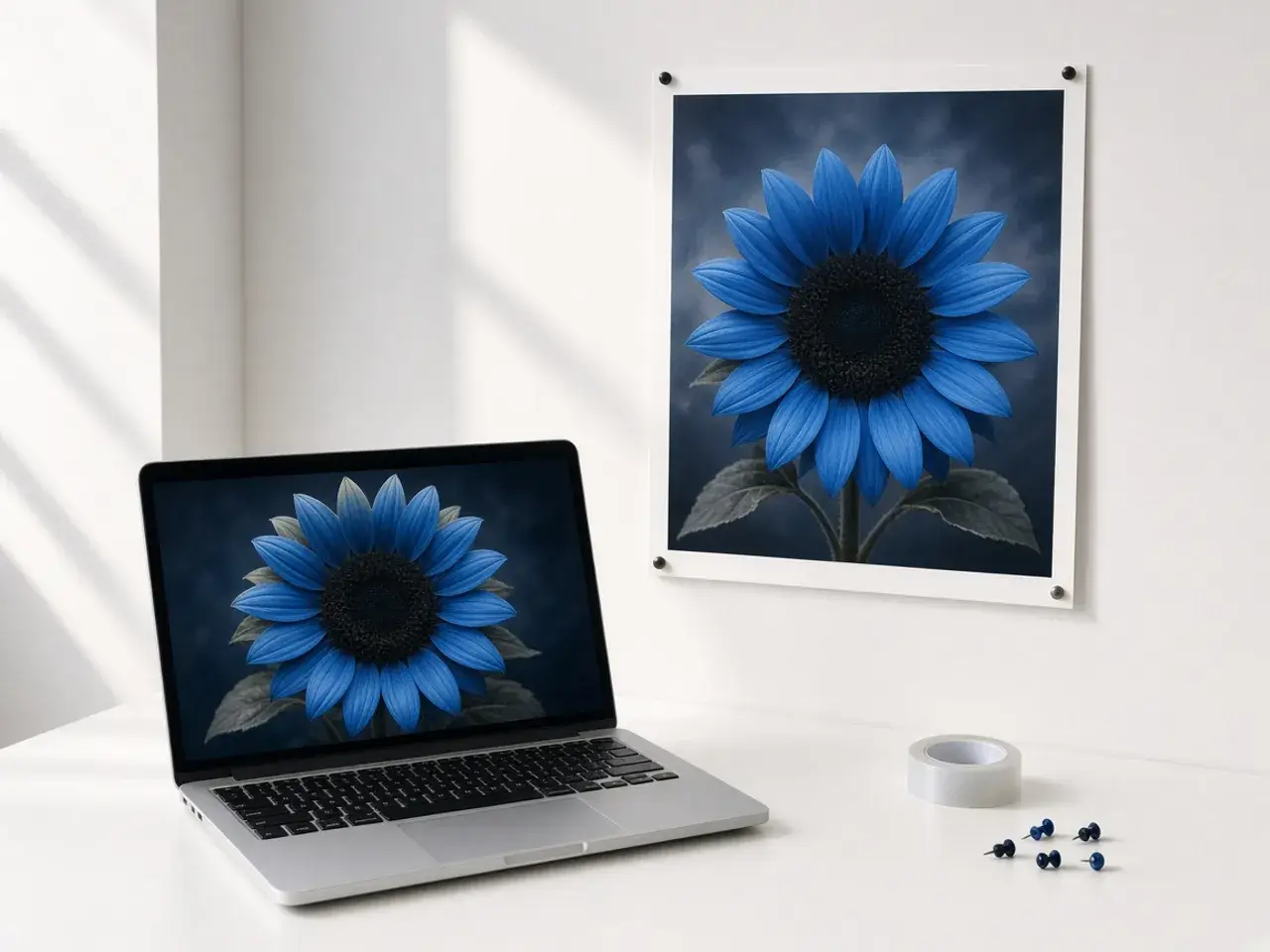
Inverted colors look unusual on purpose. A portrait becomes ghostly, a light blue sky turns a deep orange-brown, and a green field turns purple. That surprise works for a gig poster, an album cover, a video thumbnail, or a slide that needs to grab attention.
Try it on photos with strong shapes and clear contrast. Busy pictures full of small details can look noisy once inverted, so keep the ones that read well and skip the rest. A transparent background stays transparent, which makes a logo or a sticker easy to place on a dark design.
Invert a whole set at once
Add up to 20 pictures and every one of them is inverted the same way. That keeps a series of product shots, comic panels, or film frames consistent. Once there are two or more, a ZIP button appears so you can download the whole set as one file.
Each file keeps its original name with “_inverted” added at the end, so the copies are easy to tell apart from the originals in your downloads folder.
Invert colors, not direction
People sometimes say “invert” when they mean turning a picture around. This tool changes only the colors, and nothing moves. If you want a mirror view, use flip image instead. If you want shades of gray without the shock of opposite colors, the grayscale converter is the quieter choice.
You can use them in either order. Invert first and flip later, or the other way round, and the result is the same.
Files that work best
Most everyday photos work, including PNGs with a clear background. An animated GIF is saved as a still picture of its first frame. HEIC photos from an iPhone are not accepted, so save or share those as JPG first.
Nothing is uploaded. The colors are flipped in your browser, which matters when the picture is a private document or a family photo.
Dark versions of diagrams and notes
A white page with black lines glows on a dark screen. Inverting it gives you light lines on a dark background, which is easier on the eyes in a dark-mode app, a night-time presentation, or a video with a dark theme.
This works best for simple black and white material such as handwritten notes, sketches, sheet music, and line charts. Color photos change in more surprising ways, so check the preview first.
Creative ideas with inverted colors
- A poster or album cover with a striking negative look.
- An X-ray style effect for a science class or a Halloween card.
- A pair of images, normal and inverted, side by side for contrast.
- Inverted leaves or flowers as an unusual phone wallpaper.
Get a clean result from a scan
Phone photos of paper often have a gray tint or a shadow in one corner. After inverting, that tint turns into a light haze across the dark page. Take the photo in even light, fill the frame with the page, and crop away the table around it first.
The cleaner the original, the crisper the light-on-dark version will look. An image color inverter cannot add detail the camera missed, so a sharp photo matters more than anything else.
Changed your mind?
Inverting twice brings the picture back to its original colors, and your original file is never changed. Use the compare view to switch between the two versions before you download.
Frequently asked questions
What does an image color inverter do?
It replaces each color with its opposite: white becomes black, black becomes white, and red becomes cyan. The shapes and the layout stay the same.
Can I invert several pictures at once?
Yes, up to 20. With two or more, you can download them all as one ZIP.
Does a transparent PNG stay transparent?
Yes. Clear areas stay clear and only the visible colors change. Save as PNG or WebP to keep it.
Can I see the original again?
Hold the compare button above the download options. Let go to return to the inverted preview.
Is an image color inverter the same as flipping a picture?
No. Flipping moves the picture like a mirror and keeps the colors. Inverting keeps everything in place and changes the colors.
Are my pictures uploaded?
No. The image color inverter runs in your browser, and the files stay on your device.
Sources
- Work with adjustment layers: Photoshop: Invert is an adjustment layer that reverses colors