

Turn a square to circle without losing the edges
A square logo looks simple to make round, but a plain round crop quietly removes its corners. If a letter, a tagline, or a thin outline sits near an edge, it disappears. The converter starts in Fit for exactly this reason: the whole square shrinks just enough to sit inside the circle, and nothing is lost.
You can still move and zoom. Nudge the logo up if it has text underneath, or zoom in a little if it looks too small in the middle. The goal is a square to circle change that looks intentional, not a shape that was cut by accident.
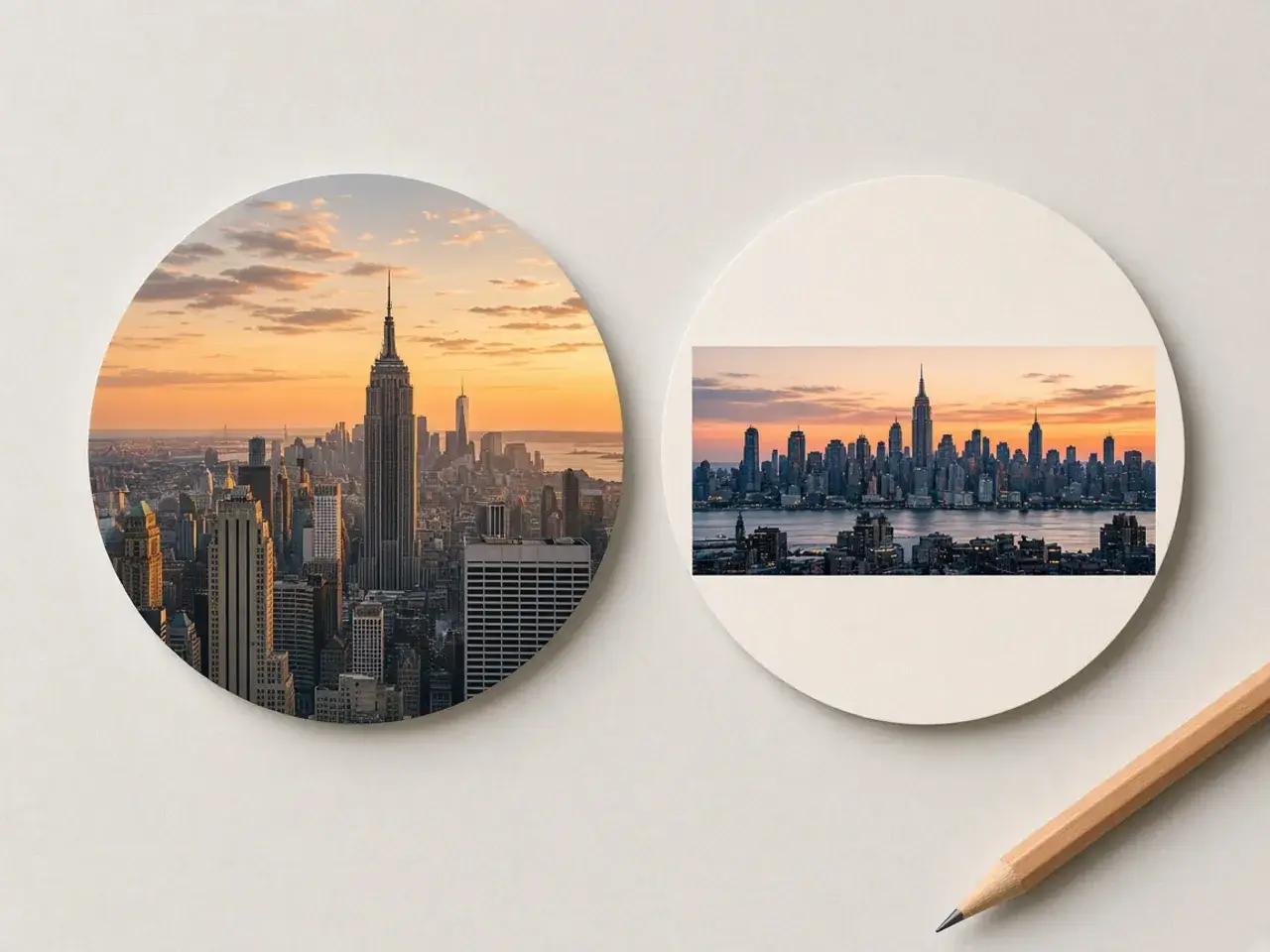
Wide photos that still look good round
A beach, a skyline, or a long product shot is much wider than it is tall. Crop fills the circle with the middle of that scene and drops the sides. Fit keeps the whole view and leaves space above and below it, which you can keep clear or fill with a color.
Neither option is wrong. Crop gives a bold, full circle. Fit gives a complete picture with breathing room. Try both and pick the one that tells the story you want.
Fit or Crop: a quick guide
- Logos, wordmarks, and icons: Fit, so every part of the design stays.
- Portraits and pets: Crop, so the face fills the circle.
- Screenshots and charts: Fit, because text near the edges matters.
- Food, flowers, and textures: Crop, for a rich, full circle.
- Wide landscapes: try both. Fit shows the whole view; Crop focuses on the middle.
Where round pictures work best
Round images soften a layout. They work well for team photos on an about page, product badges in an online shop, speaker cards for an event, and icons in a presentation. A clear background lets the circle sit on any color, so you can reuse the same file on a white page and a dark slide.
If you are making a profile picture, the PFP cropper adds small previews that show how the photo reads at avatar size. If the circle needs a colored ring around it, use the border tool after converting.
Tips for a sharper result
Start with the largest version of the picture you have. A logo saved from an email signature is often tiny, and it will look soft once it becomes a big circle. Ask for the original file if you can.
Leave a little margin. A design that touches the edge of the circle feels cramped, while a small gap makes it look finished. When the round picture will sit on a busy background, a soft blur or a solid color behind it keeps it readable.
Square to circle for a set of icons
Many projects need more than one round image: a row of feature icons on a website, a set of category badges in a shop, or partner logos on an event page. Convert each one with the same setting, Fit for logos or Crop for photos, so the circles look like one family.
Keep the zoom similar from one image to the next. When one logo looks much bigger than its neighbors, the whole row feels uneven, even if every circle is the same size. A quick square to circle pass on the full set, one after another, keeps them consistent.
Common mistakes to avoid
- Using Crop on a logo with text near the edge, which cuts off letters.
- Starting from a tiny, blurry copy of a logo instead of the original file.
- Downloading a JPG when the circle needs a see-through background.
- Zooming so far in Crop that a face loses its chin or forehead.
Private and free to use
This image to circle converter works right in your browser. Your logo or photo is not uploaded, there is no account to create, and there is no watermark on the download. Close the tab and the picture is gone from the page.
Frequently asked questions
Will Fit cut off any part of my picture?
No. Fit shrinks the whole picture until it sits inside the circle. The space around it stays clear on a PNG or takes the color you choose.
Does Crop keep the whole photo?
No. Crop fills the circle and removes whatever falls outside it, usually the corners and the sides of a wide photo.
How do I turn a square to circle without losing the corners?
Use Fit. The square shrinks just enough to fit inside the circle, so its corners stay visible.
Why does my logo look cut off?
You are probably in Crop. Switch to Fit and the whole logo moves back inside the round frame.
Can the background around the circle be transparent?
Yes. Download a PNG or WebP. JPG cannot be see-through, so it fills that space with a color.
Does the image to circle converter upload my image?
No. Everything happens in your browser, and nothing is stored on a server.
Sources
- createImageBitmap: The browser decodes the photo on this device
- HTMLCanvasElement.toBlob: The download is written by the browser, not uploaded