
Flip image selfies so the writing reads right
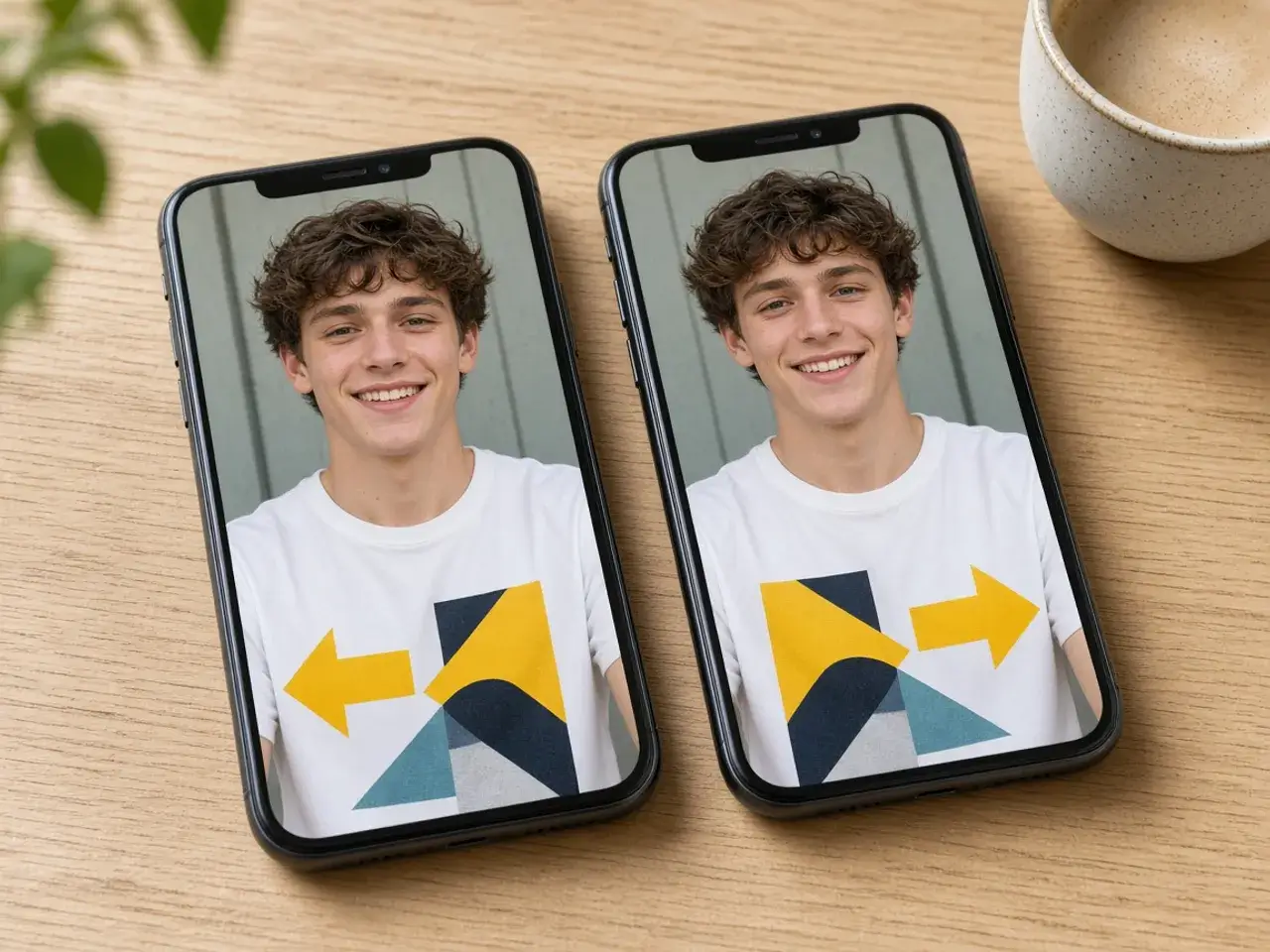
Most phones show the front camera like a mirror while you frame the shot, and some save the photo that way too. The result is a picture where the café sign behind you, the slogan on your T-shirt, or a name badge reads backwards. Friends notice right away, even if they cannot say what feels off.
A horizontal flip puts left and right back where they belong. Upload the selfie, tap Horizontal, and check that the words read normally before you download. Your face will look the way other people see you, which can feel strange at first because you are used to the mirror version.
Make a mirror image from one half
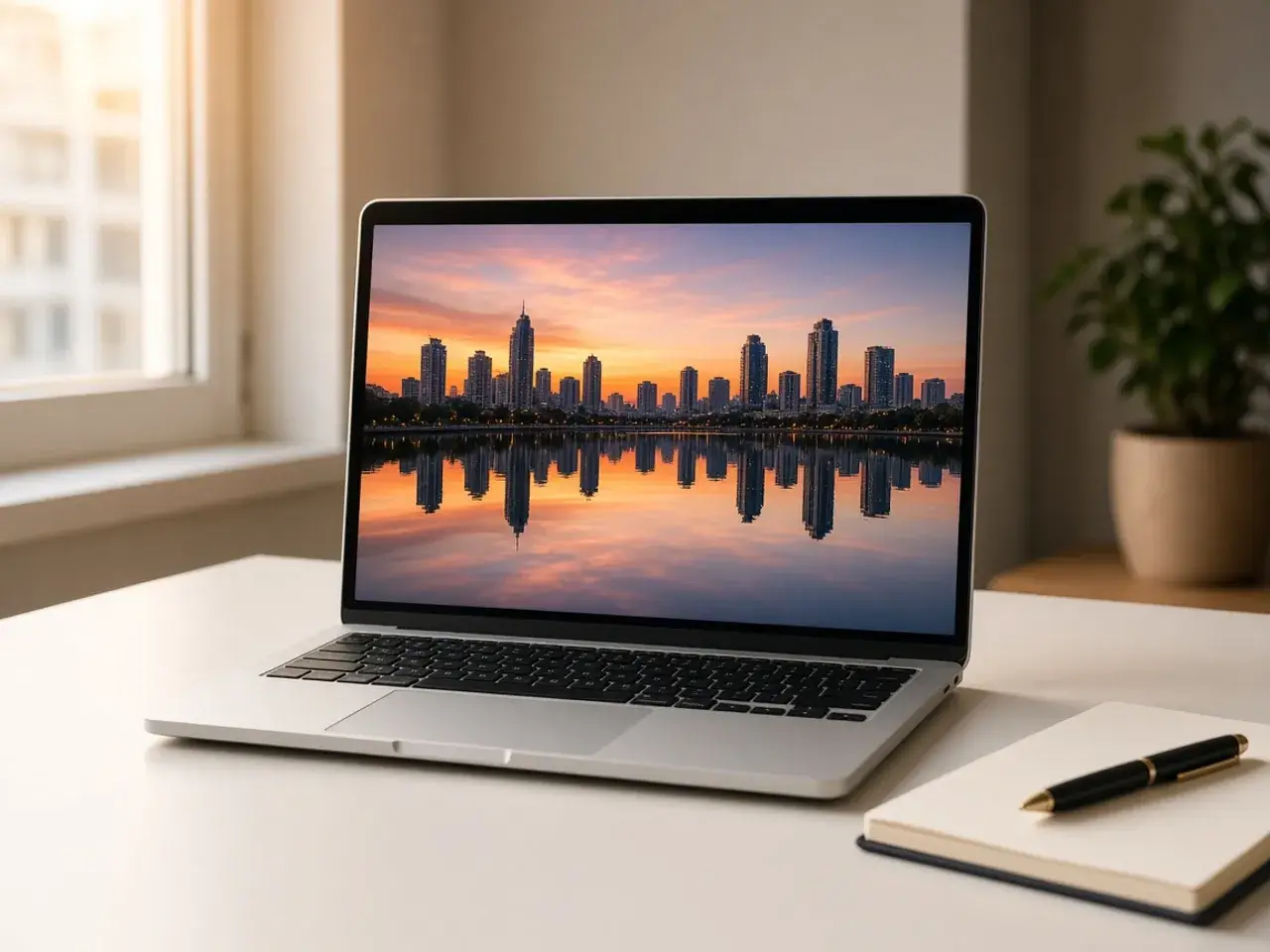
The Mirror setting does something different from a plain flip. Instead of reversing the whole photo, it keeps one side and reflects it onto the other, so the picture becomes perfectly symmetrical. Pick left to right, right to left, top to bottom, or bottom to top, then slide the mirror line to choose where the fold falls.
This is handy for patterns, kaleidoscope-style backgrounds, a reflection in imaginary water, or a playful symmetrical portrait. Move the line off center when the fold should run along a building edge or a tree trunk rather than through the middle of a face. If you only wanted the person to face the other way, switch Mirror off and use Horizontal.
Flip image layouts for slides and covers
Designers flip image files all the time for composition. A person looking toward the title draws the eye into the page, while one looking off the edge pulls attention away. Two speakers on an event poster usually look best facing each other.
A quick horizontal flip solves this without recropping or retaking the shot. Be careful with anything that contains writing, a logo, or a famous landmark, because a mirror image of those is easy to spot.
Flip or rotate?
Flipping and turning are easy to confuse. When you flip image content, it reverses like a mirror, while a turn spins it around its center. If your picture is lying on its side, you want to rotate the image instead. Switching on both Horizontal and Vertical gives the same result as a half turn.
A flip also leaves the colors alone. If you were looking for a negative, where light and dark swap places, use the image color inverter.
Good to know before you save
- When you flip image files, the size does not change, so they still fit the same frame or slot.
- Undo and Redo let you step back if you tap one button too many.
- PNG keeps a clear background clear, while JPG is handy for a quick share.
- Copy puts the result on your clipboard for pasting into a chat or a document.
Everyday reasons to flip image files
Front cameras save selfies reversed on many phones, so a T-shirt slogan or a sign behind you comes out backwards. Flip image copies of those shots and the words read correctly.
Designers flip product photos so every item on a page faces the same way. Teachers flip diagrams to make left and right versions for a worksheet. Online sellers flip a listing photo so the product points toward the price and the buy button.
When not to flip a photo
Some pictures should stay as they are. Logos, maps, clocks, and anything with writing will look wrong when reversed. Portraits of well-known people can look oddly unfamiliar flipped, because we are used to seeing their face one way. Before you flip image files like these, check the result at full size.
Frequently asked questions
How do I flip image files on a phone?
Open the page in your browser, upload the photo, tap Horizontal or Vertical, and download. It works on iPhone and Android without an app.
What is a mirror image?
It is a picture reversed left to right, the way you see yourself in a mirror. Here, the Mirror setting can also copy one half onto the other for a symmetrical result.
Why does my selfie look like a mirror image?
Many front cameras save the photo the way the preview looked, which is reversed. A horizontal flip shows the scene the way other people saw it.
Does flipping lower the quality?
No. Width and height stay the same and nothing is shrunk. Pick PNG if you want to avoid any extra compression.
Can I flip image files and mirror them in one go?
Yes. The flip buttons apply first and the mirror after, so you can correct a reversed selfie and then make a symmetrical version of it.
Is my photo uploaded?
No. Everything happens in your browser, and the picture never leaves your device.
Sources
- createImageBitmap: The browser decodes the photo on this device
- HTMLCanvasElement.toBlob: The download is written by the browser, not uploaded