
Black and white for a printed page
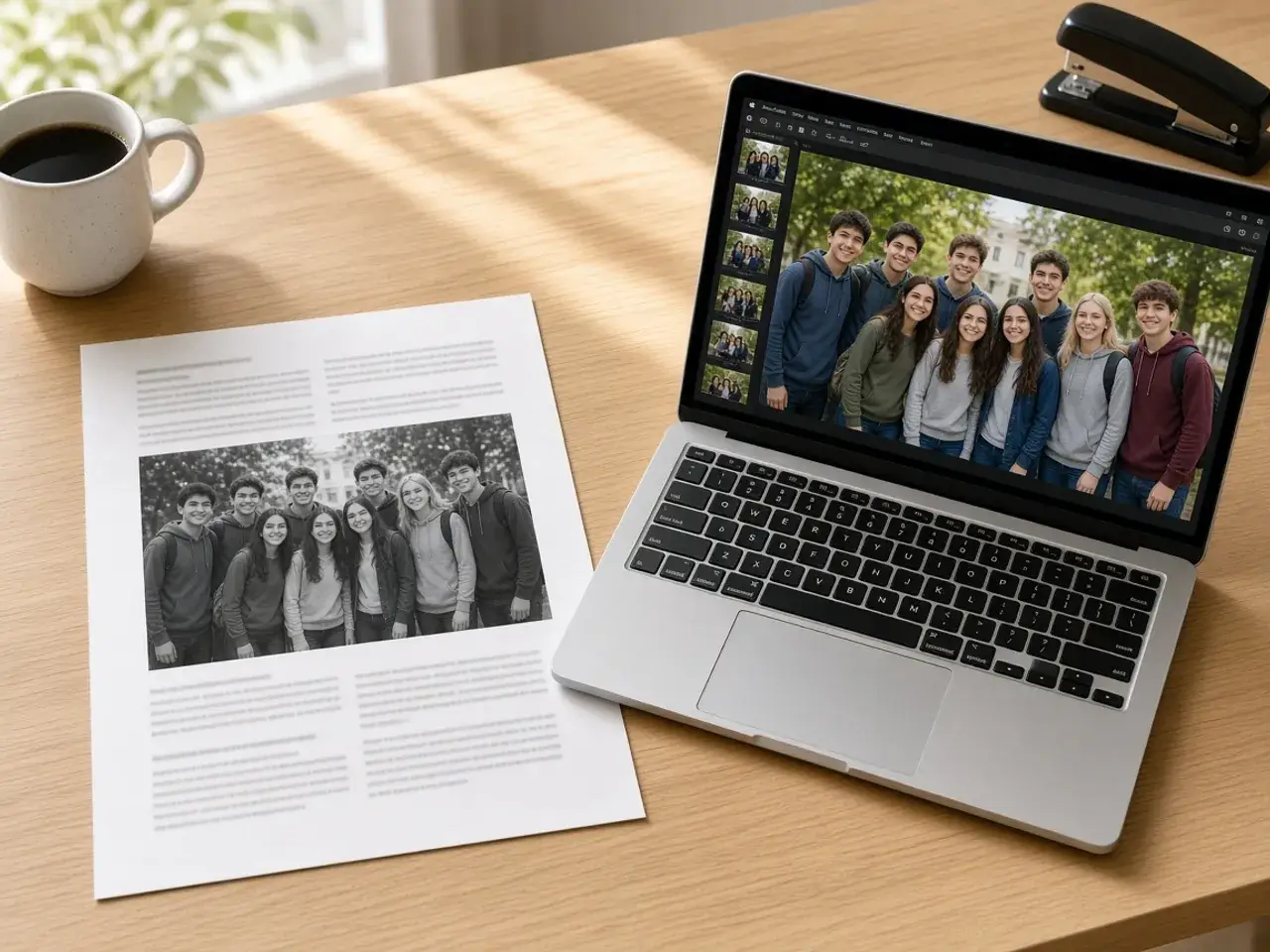
Color photos often look muddy when they come out of an office printer or a photocopier. Reds turn into dark blotches and pale blues vanish completely. Running it through a grayscale image converter first lets you see the result on screen and adjust it before you waste paper.
This comes up with a school newsletter, a church bulletin, an event program, or a resume with a small headshot. Open the photo, check that faces and details still have enough contrast, and download a gray copy to place in the document.
Convert image to grayscale without losing the subject
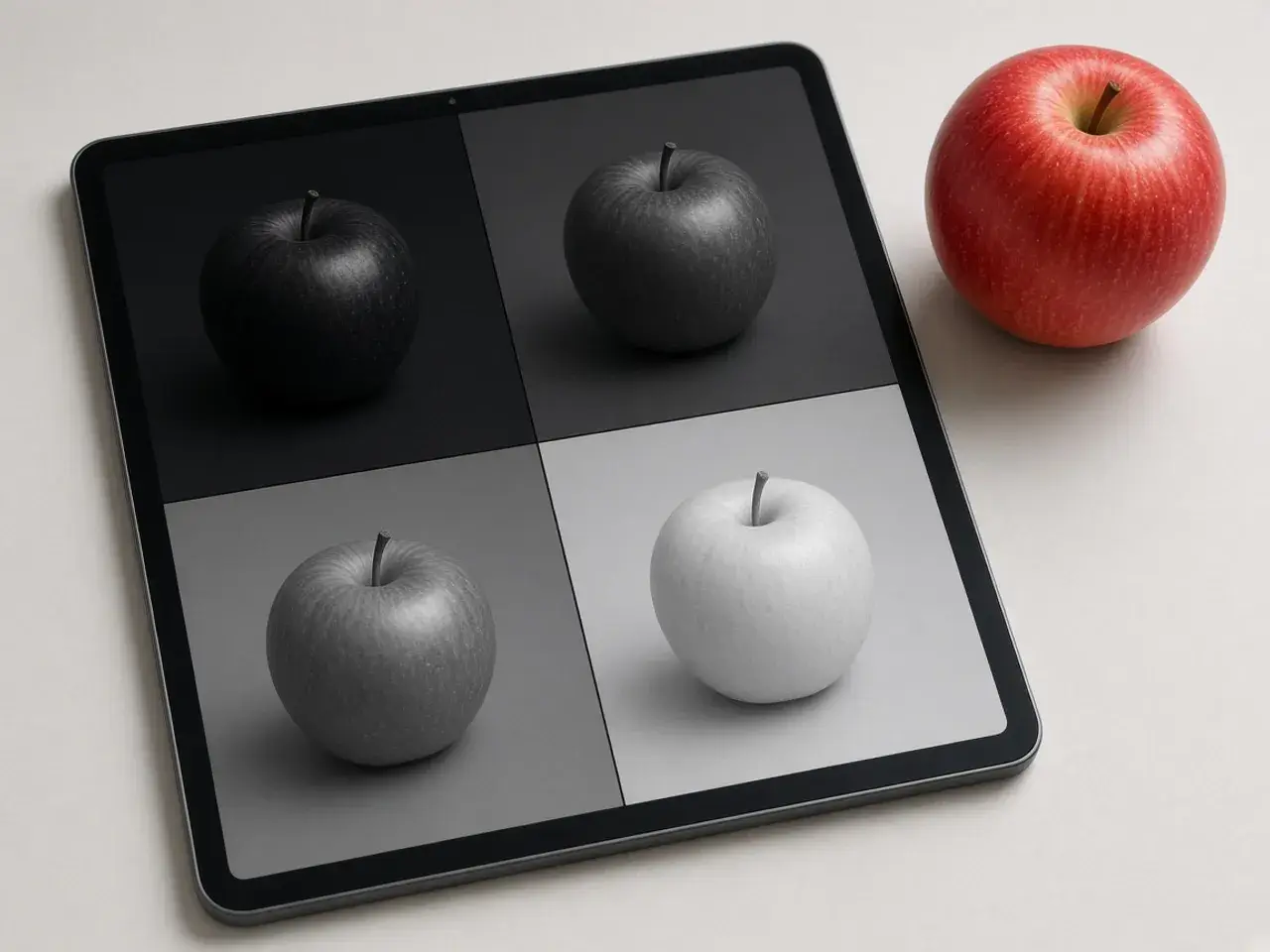
Not every color turns into the gray you expect. A red logo on a green shirt can end up as two almost identical grays, and a face can look flat. That is why the converter offers several methods. The first two follow how bright colors look to the human eye and usually look the most natural. Average, Lightness, Maximum, and Minimum are simpler and can push certain colors lighter or darker.
Try two or three of them on your own photo and keep the one where the subject still stands out. If full gray feels too cold, lower the Amount slider to let a little of the original color back in. Hold the compare button at any time to check against the color version.
When to convert image to grayscale
Gray is more than a printing fix. A moody portrait, a rainy street, or old family photos placed next to new ones can all look better without color. Artists use gray references to judge light and shadow, and online sellers sometimes use it for a calm, uniform catalog page.
For the opposite effect, a striking negative where light and dark swap places, try the color inverter instead. To soften a busy background before or after you go gray, the blur tool helps.
Keep a photo set consistent
When several photos will sit side by side, such as staff headshots or a series of products, use the same method and Amount for each one. Different settings make some photos look darker than others even when they were taken in the same light. Note your settings so the next photo you add will match.
Once they are all gray, you can merge them into one picture for a collage or a side-by-side comparison.
What happens to your file
The grayscale image converter writes a new picture and never touches the color original. A transparent background on a PNG stays transparent, as long as you save as PNG or WebP. Nothing is uploaded, so private scans and family photos stay on your device.
Make a black and white photo look good
Not every photo works in gray. Pictures with strong light and shadow, such as a portrait by a window, a city street at noon, or a textured wall, tend to look striking. Photos where two colors of the same brightness sit side by side, like a red flower against green leaves, can turn flat because both colors become a similar gray.
If the result looks dull, try another photo from the same set or crop closer to the subject, so the contrast between light and dark carries the picture.
Popular ways to use grayscale photos
- Printed forms, ID applications, and school papers that ask for a black and white photo.
- Product pages and catalogs that need a consistent, quiet look.
- Memorial cards, invitations, and photo books with a vintage feel.
- Slides where a gray background photo lets colored text stand out.
Keep a little color
You do not have to remove every trace of color. Lower the amount and some of the original tone stays in, which gives a soft, faded look that works well for backgrounds and lifestyle photos. Compare it with the full black and white version before you choose.
Frequently asked questions
How do I convert image to grayscale on my phone?
Open this page in your phone’s browser, upload the photo, and download. The first method in the list is already selected and works well for most pictures.
Which method in the grayscale image converter should I choose?
Start with the first one. Switch only if a colored part of the photo, such as a red logo or a face, looks too dark or too flat.
Can I keep some of the color?
Yes. Lower the Amount slider for a faded look with a hint of the original color.
Will a transparent background survive?
Yes, if you save as PNG or WebP. JPG cannot store transparency.
Is the photo uploaded?
No. The conversion runs in your browser and the file stays on your device.
Is this grayscale image converter free?
Yes. There is no sign-up and no watermark on the download.
Sources
- Rec. 709: Weighted luma used by the first method in the list
- Rec. 601: Older video weights used by the second weighted method
- createImageBitmap: The browser decodes the photo on this device
- HTMLCanvasElement.toBlob: The download is written by the browser, not uploaded