
Where a round export fits
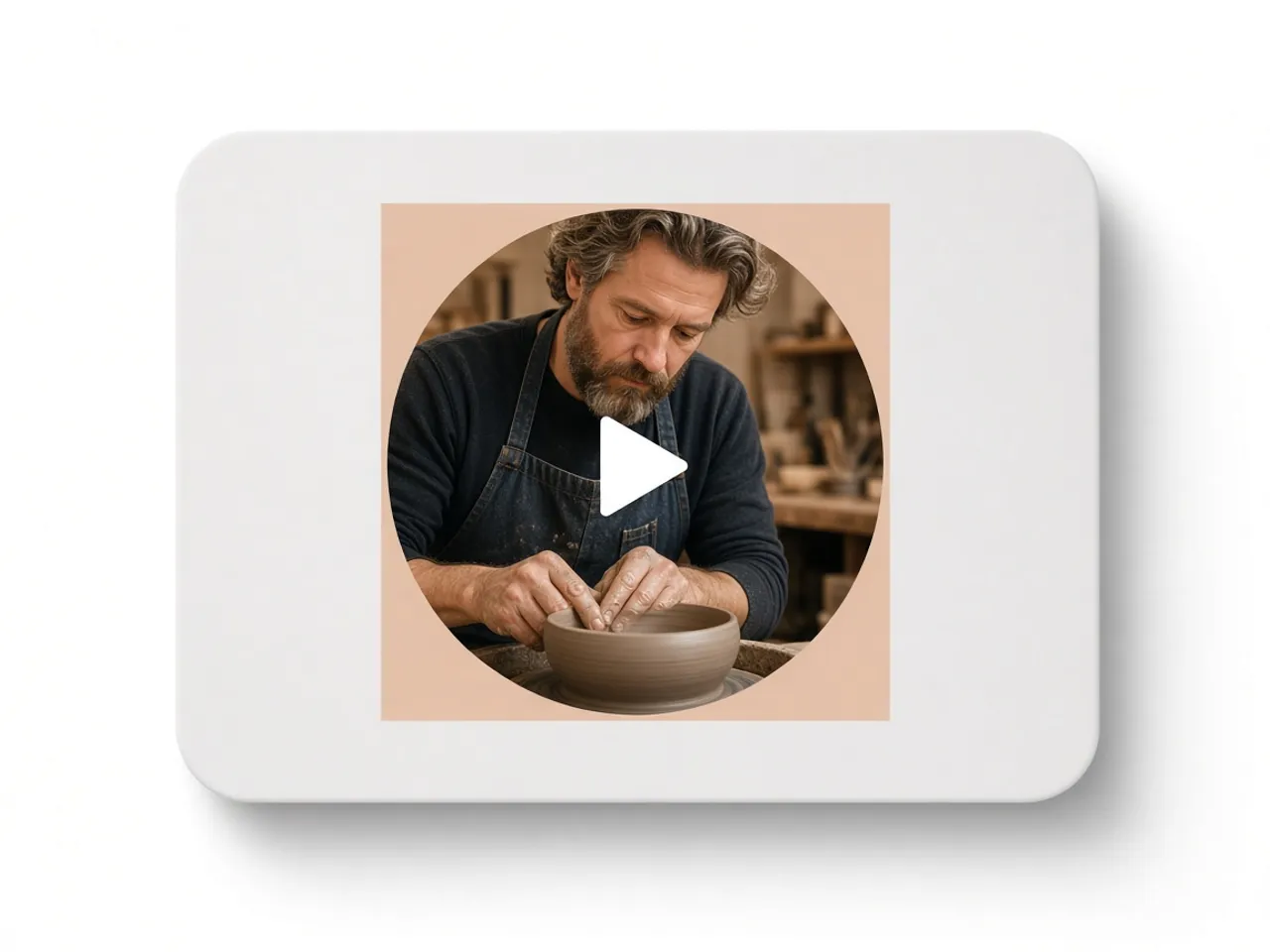
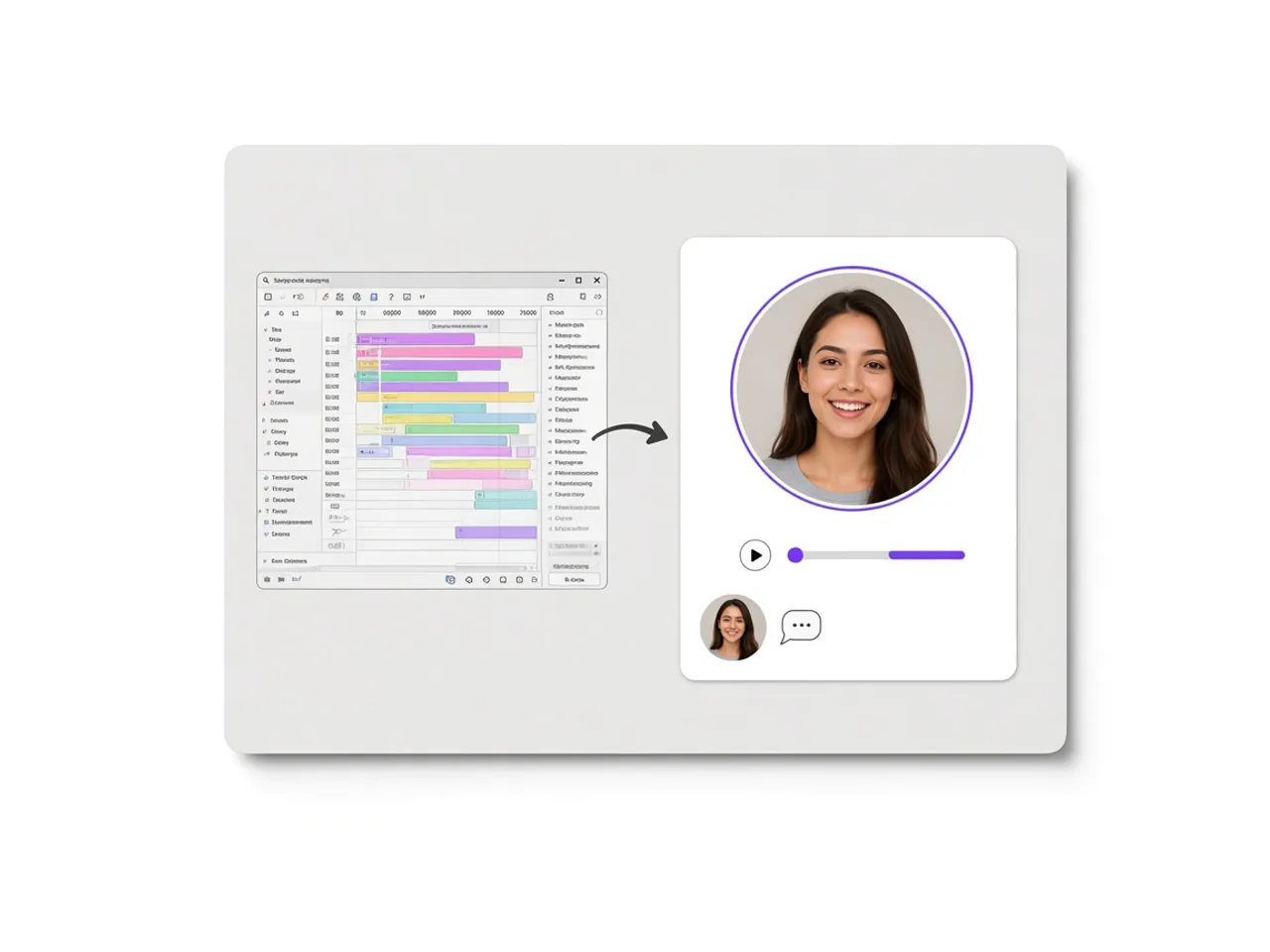
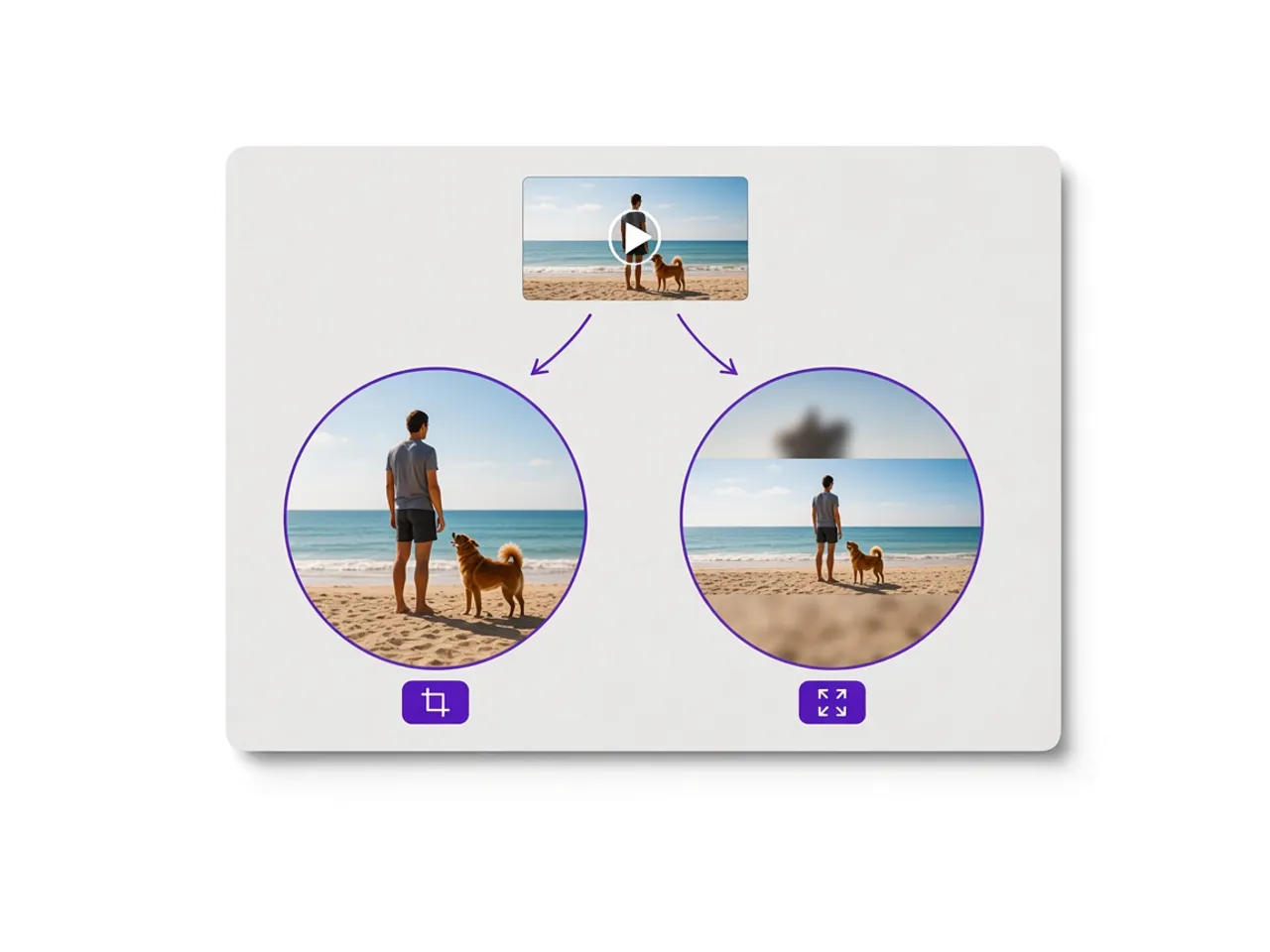
Use a circle crop video when the next place already shows circles: a face over a tutorial, a looping product shot on a store card, or a short clip that should feel like an avatar in motion. Landscape footage works when the subject sits near the middle. If the whole scene matters, switch to Fit so the sides stay in.
Some chat and social apps draw their own circle from a square file, so a 1:1 export is enough. If an editor cannot mask video, download the Mask PNG and lay that still over the original clip. In both cases you leave with a file, not a project that only opens in one app.
The same file works for speaker bubbles on recorded meetings, course intros, and marketplace cards that need motion without a rectangular poster. Drop it onto a slide, a site block, or a chat box without another layout pass.
MP4, WebM, and the four corners
A circle always leaves four corners to fill. Choose MP4 when the circle crop video has to play on phones and in almost every editor; it fills those corners with a solid color or with green for chroma key. WebM can keep a transparent outside in browsers that support it, but fewer apps open that file cleanly. Neither format is a true round container. The circle is painted into a square video.
A transparent circle and a green-screen circle solve the same corner problem in different ways. Pick a color fill when you know the background. Pick green when a desktop editor will key the outside. Pick WebM only when you control the player and have checked that it keeps alpha.
If a clip will not open here, the codec may be unsupported in that browser. HEVC from some phones is a common desktop blocker. An H.264 MP4 is the most reliable source across Chrome, Firefox, Edge, and Safari.
Framing that still reads when it is small
Keep eyes, logos, and text away from the rim. A crop that fills the circle edge to edge can look tight once another app adds a ring or shrinks the file. Landscape shots lose left and right when you fill the circle; Fit is better when every edge of the scene matters.
Short clips finish more smoothly than long ones. Export often runs close to real time, so a one-minute clip can take about a minute. Keep this tab open while it runs. Very large phone recordings may need a smaller output: 360, 720, 1080, or 1440. Your original file is never overwritten.
If the subject sits off-center, drag the clip or pull the handles before you export. Checking the frame here is faster than finding the crop is wrong after the file is already in a slide or a product page. Quiet backgrounds help: busy patterns pull attention once the circle is small.
Frequently asked questions
What is a circle crop video?
A square video with the picture kept inside a round frame. Corners are filled with color, green for keying, or left clear when WebM transparency is available.
How do I make a circle crop video on my phone?
Open this page, tap Add a video, pick a clip from your gallery, drag it into place, then tap Export. Keep the screen on while it runs, and choose 360 or 720 if the phone gets slow.
Does the video keep its sound?
Yes. Sound is included by default. Mute the export if you only need the picture.
Can I get a transparent background?
WebM can keep a clear outside where the browser supports it. MP4 cannot store transparency, so it fills the corners with a color you choose, or with green for chroma key later.
Is my video uploaded or watermarked?
No. Processing stays on your device. There is no watermark and no account.
How long can the video be?
Short clips work best. Export often runs close to real time, so a one-minute clip can take about a minute. Long or huge files are slower on phones.
What if I searched for circle corp video?
You are in the right place. Corp is a common misspelling of crop; the tool still makes a circle crop video.
Which video formats work?
MP4, MOV, and WebM that your browser can play. If a file fails to load, try another browser or convert it to H.264 MP4 first.